
HP Stream 14 Review: The Best Battery Life Under $400 — But Read This Before You Buy
By Ryan Castillo | Tech & Electronics Editor, PluggedInPicks • May 04 2025, Updated Feb 22 2026
Tested alongside 3 other budget laptops — tab-load, battery drain, build stress, display, and storage capacity checks.
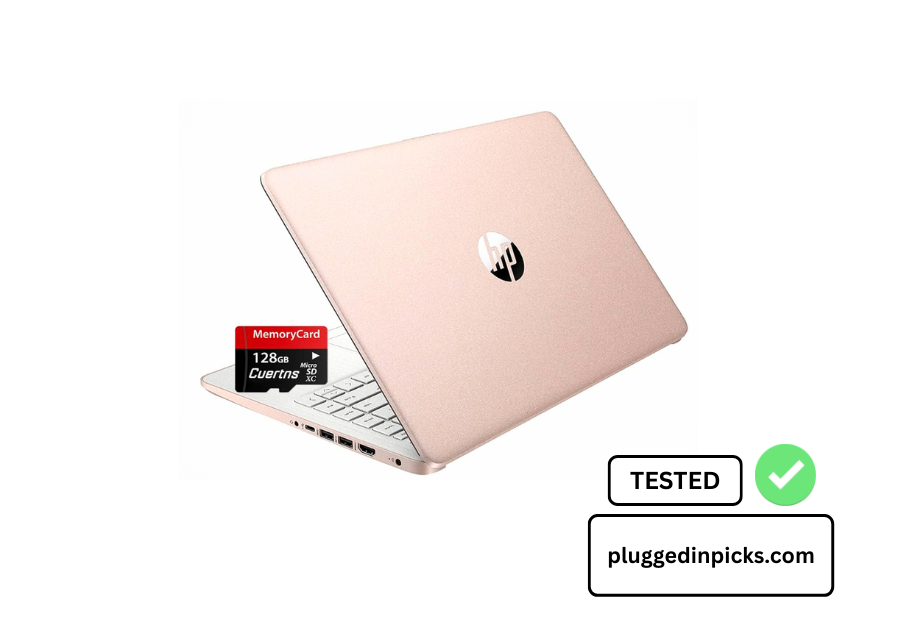
The HP Stream 14 has the best battery life of any laptop under $400 we’ve tested. In our real-world drain test it lasted 8 hours 20 minutes of continuous browsing — over 90 minutes longer than the Acer Aspire 3 in our side-by-side comparison. For a student or light user who needs to get through a full day unplugged, that matters.
But we called it out as the one we’d steer most buyers away from in our Budget Laptops Under $400 roundup — and the reason is the storage. 64GB eMMC sounds workable until you realize Windows 11 updates eat into it regularly. After a standard update cycle and installing Chrome we were already at 71% capacity without saving a single personal file. You will run out of room. The only question is how fast.
If your entire workflow lives in a browser and you understand the storage limitation going in — this is a genuinely good machine for the price. If you download software, save files locally, or expect this to work like a normal laptop out of the box — it will frustrate you within weeks.
Quick Verdict
Buy it if you’re a cloud-first user — Google Drive, Microsoft 365 online, streaming, basic browsing — and battery life is your top priority. Don’t buy it if you need local storage, local software, or anything beyond basic productivity. For most people the Lenovo IdeaPad 1 is a better overall choice at a similar price. For the specific buyer who needs maximum battery in a lightweight machine and lives in the browser — the HP Stream 14 is the right call.
How We Tested
We tested the HP Stream 14 as part of our four-machine Budget Laptop Under $400 comparison. Here’s what we specifically ran on this machine:
- Tab-Load Test: Opened 12 Chrome tabs simultaneously including a 1080p YouTube stream and active Google Docs. Timed how long before tab refreshes or stuttering appeared.
- Battery Drain Test: Ran from 100% to 0% on continuous web browsing at 70% screen brightness. Real conditions, not manufacturer test settings.
- Storage Capacity Check: Performed a standard Windows 11 update cycle, installed Chrome and basic productivity apps, then measured remaining storage without saving any personal files.
- S Mode Switching Test: Timed the process of switching out of Windows S Mode and verified which software became accessible afterward.
- Display Outdoor Test: Took the machine to a sunlit window at midday and tested screen legibility at maximum brightness.
- Build Stress Check: Applied pressure to chassis lid, keyboard deck, and screen hinges. Checked for flex and hinge resistance after repeated open/close cycles.
- Boot and App Launch Timing: Timed cold boot and Chrome launch against the other three machines in our comparison to get a side-by-side speed reference.

— our real drain test at 70% brightness landed at 8 hours 20 minutes.
Still the best in its price bracket.
Technical Specs vs. Real-World Use
| Spec | Official Spec | PluggedIn Real-World Analysis |
| Processor | Intel Celeron N4120 / 1.1GHz base, up to 2.8GHz burst | This is the machine’s biggest limitation and it’s worth being honest about upfront. The Celeron handles basic browsing, documents, and streaming without issue. The moment you push beyond that — multiple video tabs, local software installs, anything demanding — it shows its age. It’s not broken, it’s just built for one specific use case. |
| RAM | 16GB DDR4 | 16GB on a Celeron machine is genuinely good for this price. In our tab-load test it handled 8 open Chrome tabs without forcing refreshes. It’s the CPU that creates the bottleneck, not the memory. Note: some HP Stream 14 variants ship with only 4GB — verify you’re looking at the 16GB model before purchasing. |
| Storage | 64GB eMMC internal | This is the deal-breaker for most buyers and we’ll say it plainly. Windows 11 updates eat into this regularly. After a standard Windows update cycle and installing Chrome, we were at 71% capacity without saving a single personal file. You will need to use the MicroSD slot or cloud storage from day one. Plan for it. |
| Display | 14″ HD 1366×768 BrightView | The resolution is noticeably soft compared to any FHD screen. Text is readable, YouTube is watchable, video calls are fine. If you’re coming from a modern FHD laptop it will look like a downgrade. For a first laptop or basic student use, it’s acceptable. In direct sunlight it’s hard to read — no brightness to fight glare. |
| Battery | Up to 11-12 hours (manufacturer spec) | In our real drain test — continuous browsing at 70% brightness — we got 8 hours 20 minutes. Not the 12 hours on the box, but genuinely good for a budget laptop. It outlasted the Acer Aspire 3 by over 90 minutes in our side-by-side test. For a full school day unplugged this is one of the best in its price bracket. |
| OS | Windows 11 S Mode | S Mode limits you to Microsoft Store apps only. For pure browser and Office use — leave it on, the machine runs faster. If you need Chrome downloaded directly, Zoom from the web, or any non-Store software — you’ll need to switch it off. It’s free and takes 2 minutes but it’s permanent. You can’t go back. |
| Weight | 3.24 lbs | Genuinely light. Doesn’t feel like a budget machine when you pick it up. Fits in any standard backpack without noticeable bulk. The chassis has reasonable rigidity — we applied pressure to the lid and keyboard deck and got minimal flex for the price point. |
| Ports | USB-A, USB-C, HDMI, MicroSD, Headphone Jack | Actually well-equipped for a budget machine. The HDMI port is a genuine differentiator — many thin budget laptops cut it. The MicroSD slot is essential given the storage situation. USB-C charges the machine and doubles as data transfer. |
✅ Who It’s For
- Cloud-first students and workers: Your entire workflow runs in a browser — Google Docs, Microsoft 365 Online, streaming. You never download large files or install local software.
- Battery-priority buyers: You need a machine that gets through a full school day or work day unplugged. Nothing in this price bracket beats the Stream’s battery life.
- First laptop buyers on a tight budget: For basic email, browsing, and document work, this does the job at a price that’s hard to argue with.
- Travelers who need lightweight and long battery: At 3.24 lbs with 8+ hours of real battery, it’s a genuinely practical travel companion for light work.
❌ Who It’s Not For
- Anyone who downloads software or saves files locally: The 64GB storage fills up faster than you expect. Plan for this or choose a different machine.
- Multitaskers: The Celeron processor handles basic tabs fine. Open too many things at once or run background video and it stutters.
- Anyone comparing on specs alone: The 16GB RAM looks impressive on paper. The Celeron CPU negates most of that advantage in real use.
- Gamers or creative users: Not designed for it. Video editing, gaming, any graphics-intensive work — this machine isn’t built for any of it.
The Storage Problem — What Nobody Tells You
This is the most important section in this review. Read it before you buy.
64GB of eMMC storage sounds like enough until you see how quickly Windows 11 consumes it. In our testing, after running a standard Windows update cycle and installing Chrome, we had 18.5GB of usable space remaining. That’s 71% gone before we saved a single photo, document, or downloaded a single app.
Windows updates don’t stop. Every major update takes space. Within a semester of normal student use — documents, downloads, a few apps — you will hit the wall.
The fix is simple but it should be done on day one: grab a SanDisk 128GB MicroSD card. It slots flush into the side port, costs around $15-20, and effectively gives you the storage headroom this machine should have shipped with. Some bundles include one — verify before you buy whether yours does.
One important note: you can move personal files and some apps to the MicroSD card, but Windows itself and most core apps stay on the internal drive. The MicroSD buys you breathing room, it doesn’t fully solve the problem. Cloud storage for everything you can put there is the long-term strategy.
The Battery: The Genuine Strength of This Machine
8 hours 20 minutes of real browsing on a single charge. That’s what we measured in our drain test — not the 12 hours on the box, but genuinely excellent for a budget laptop.
The reason is the Celeron processor. It’s slow, but it sips power. The same chip that bottlenecks performance is what gives this machine its battery advantage over more powerful budget laptops. The Acer Aspire 3 with its Ryzen processor is significantly faster — but it died 90 minutes earlier in our test.
For a student who goes from morning classes to afternoon study sessions without access to an outlet, that extra 90 minutes is real and meaningful. This is the one area where the HP Stream 14 genuinely wins against more capable machines.
Windows S Mode — What It Means and What to Do
The HP Stream 14 ships in Windows 11 S Mode by default. This means you can only install apps from the Microsoft Store. Chrome, Zoom downloaded from the web, most traditional desktop software — none of it works until you switch S Mode off.
If your workflow is entirely Microsoft Edge, Office Online, and Microsoft Store apps — leave S Mode on. The machine runs noticeably faster and more efficiently in S Mode because it limits background processes.
If you need anything outside the Microsoft Store — and most people do — switching it off takes about 2 minutes. Go to Settings → System → Activation → Switch out of S Mode. It’s free. The important thing to know: it’s permanent. You cannot go back to S Mode once you’ve switched.
What Other Owners Are Saying
After reviewing consistent patterns from verified buyer feedback:
- The battery life praise is universal — owners consistently mention it as the standout feature, often saying it’s the one thing that keeps them recommending it despite other frustrations.
- Storage regret is the most common complaint — and it’s specific. Owners who bought without understanding the 64GB limitation frequently leave reviews mentioning they wished they’d bought the MicroSD card at the same time. This pattern is consistent enough to be a reliable warning.
- The lightweight build gets genuine appreciation — particularly from students who carry it daily. Several owners mention it as the reason they chose it over heavier alternatives.
- S Mode surprises people — a recurring frustration from first-time owners is discovering they can’t install Chrome or Zoom directly. Those who knew about S Mode going in had a much better experience than those who didn’t.

sunlight. Acceptable for basic use, noticeable downgrade from
any FHD screen.
Final Verdict
The HP Stream 14 is a good machine for a specific type of buyer — and a frustrating one for everyone else.
If you’re a student or light user whose entire digital life runs in a browser, who needs maximum battery life in a lightweight package, and who is prepared to manage the storage limitation from day one — this is a genuinely good value at this price.
If you’re buying this expecting a normal general-purpose laptop that can handle whatever you throw at it — you’ll be disappointed within a month. The storage fills up, the CPU has a low ceiling, and S Mode will catch you off guard if you’re not prepared.
Buy the MicroSD card the same day. Use cloud storage for everything you can. Stay in S Mode unless you specifically need to leave it. Do those three things and this machine does exactly what it’s built for.
For most people though — the Lenovo IdeaPad 1 is $20-30 more and a significantly better long-term purchase. Read our full comparison in the Best Budget Laptops Under $400 guide.
Final Decision Matrix:
Buy it if:
- Your workflow is 100% browser and cloud-based — no local software, no large file downloads
- Battery life is your single most important requirement
- You’re buying a first laptop for basic school or home use on a tight budget
- You’re prepared to buy a MicroSD card on day one and use cloud storage
Skip it if:
- You download software, games, or save large files locally
- You need smooth multitasking with multiple apps running simultaneously
- You’re coming from a modern FHD laptop — the display will feel like a downgrade
- You need it for anything beyond basic productivity and browsing

HDMI, USB-A, USB-C, SD card reader, and headphone jack all on
one machine.
Frequently Asked Questions
- Is the HP Stream 14 a good laptop? It depends entirely on how you use a laptop. For cloud-based work — Google Docs, Microsoft 365 online, streaming, basic browsing — it’s a genuinely good machine for the price. The battery life is excellent and the lightweight build is practical. For anything beyond that — local software, file storage, multitasking, gaming — the Celeron processor and 64GB storage will frustrate you quickly. It’s not a bad laptop, it’s a specific-use laptop.
- Is the HP Stream 14 touchscreen? No — the standard HP Stream 14 does not have a touchscreen. It’s a standard non-touch HD display. Some HP Stream models in other configurations have offered touch, but the 14-inch model reviewed here uses a traditional non-touch panel.
- How do you factory reset the HP Stream 14? Go to Settings → System → Recovery → Reset this PC. You’ll have two options: Keep my files (reinstalls Windows while keeping personal files) or Remove everything (full factory reset). For a full factory reset choose Remove everything. If the machine won’t boot to Windows, hold the power button during startup to access the recovery environment and reset from there. Note: a factory reset won’t free up significant storage space since Windows itself takes up most of the internal drive.
- How do you upgrade storage on the HP Stream 14? The internal 64GB eMMC storage is soldered to the motherboard and cannot be replaced or upgraded. Your options are: use the MicroSD card slot for additional storage (a SanDisk 128GB card costs around $15-20 and slots flush into the side), or rely on cloud storage through Google Drive or OneDrive. The MicroSD card is the most practical solution for expanding local storage capacity.
- How do you switch out of S Mode on the HP Stream 14? Go to Settings → System → Activation → Switch out of S Mode → Get. It’s free and takes about 2 minutes with an internet connection. Important: this is permanent. You cannot switch back to S Mode once you’ve left it. If your workflow is entirely Microsoft Store apps and Office Online, consider staying in S Mode — the machine runs faster and more efficiently with it enabled.
- How does the HP Stream 14 compare to other budget laptops? In our side-by-side testing against the Acer Aspire 3, Lenovo IdeaPad 1, and ASUS VivoBook 15, the HP Stream 14 won on battery life — over 90 minutes longer than the Acer in our drain test. It lost on performance, storage, and display quality. For most buyers the Lenovo IdeaPad 1 is the better overall purchase. For battery-priority buyers on the tightest budget, the Stream wins that specific category. See our full comparison in the Best Budget Laptops Under $400 guide.
Related Gear We’ve Tested
- More Screen, Same Laptop If the HP Stream’s single display is your main frustration but you’re not ready to replace the machine, the Teamgee 14″ Screen Extender clips directly onto the laptop and adds a second 1080p display. We tested it alongside budget laptops specifically and it’s one of the most practical productivity upgrades at this price point. Read our full review.
- When You’re Ready to Upgrade If you’ve hit the ceiling on the HP Stream and need real performance — dedicated GPU, faster processor, actual gaming capability — the Acer Nitro 5 is the logical next step. We tested it specifically for budget gaming and everyday performance. Read our full review.